Connecting WhatsApp Business API to n8n is straightforward on paper and breaks in production for one specific, predictable reason almost every time: the 24-hour messaging window. Get the credentials wired up, send a test message, watch it work, then two days later a customer replies and the automated follow-up silently fails to send. This guide covers the actual setup, the credential gotchas that trip up a first attempt, and, more importantly, the rule that determines whether your WhatsApp automation survives contact with real customers.
15 min read
A real, working setup for connecting WhatsApp Business Cloud API to n8n, including the 24-hour rule gotcha that breaks most first attempts.
The 30-second version
Step 1: set up the Meta developer app
WhatsApp automation runs through Meta's WhatsApp Business Cloud API, which means the credential setup starts on Meta's side, not n8n's. Create a Meta developer account, set up a Business app, and add the WhatsApp product to it. This step also requires a WhatsApp Business Account (WABA), which Meta needs to verify.
Budget real calendar time here. Meta's business verification is not instant, and template message approval, needed for step six, can add more days on top. This setup cost is real and worth flagging to a client upfront rather than promising same-day WhatsApp automation.
Step 2: get your permanent access token and phone number ID
Two pieces of information come out of the Meta app: the phone number ID (identifies which WhatsApp Business number you're sending from) and an access token. The token Meta gives you by default in the testing UI is temporary, it expires in 24 hours, which is fine for a quick test and will quietly break your workflow in production the next day.
Generate a permanent access token through a System User in Meta Business Settings instead. This is the token that actually belongs in a production n8n credential, not the short-lived one from the quick-start screen.
Step 3: connect credentials in n8n
In n8n, add WhatsApp Business Cloud credentials using the phone number ID and the permanent access token from step two. This is a straightforward field-mapping step, the actual gotcha here is credential confusion, mixing up the temporary testing token with the permanent one, which produces a workflow that works for a day and then fails with an auth error that looks unrelated to the real cause.
Step 4: set up the trigger for incoming messages
To react to incoming WhatsApp messages, n8n needs a webhook that Meta can call. This means configuring a Webhook URL in the Meta app pointing at your n8n instance, and completing Meta's webhook verification handshake, a challenge-response check Meta runs before it will actually start sending events.
If n8n is self-hosted, this webhook URL needs to be publicly reachable over HTTPS, not localhost, which is the most common reason the verification step fails on a first attempt. A reverse proxy with a valid SSL certificate in front of the n8n instance is a prerequisite here, not an optional nicety.
Step 5: build the send and reply logic
Once the trigger is working, the actual workflow logic, look up the customer, run it through an AI agent or a fixed reply flow, decide what to send back, is standard n8n work using the WhatsApp node's send message operation. This is also where most builds correctly wire the happy path and then get blindsided by the rule in step six.
Step 6: the 24-hour rule, and why it breaks most first attempts
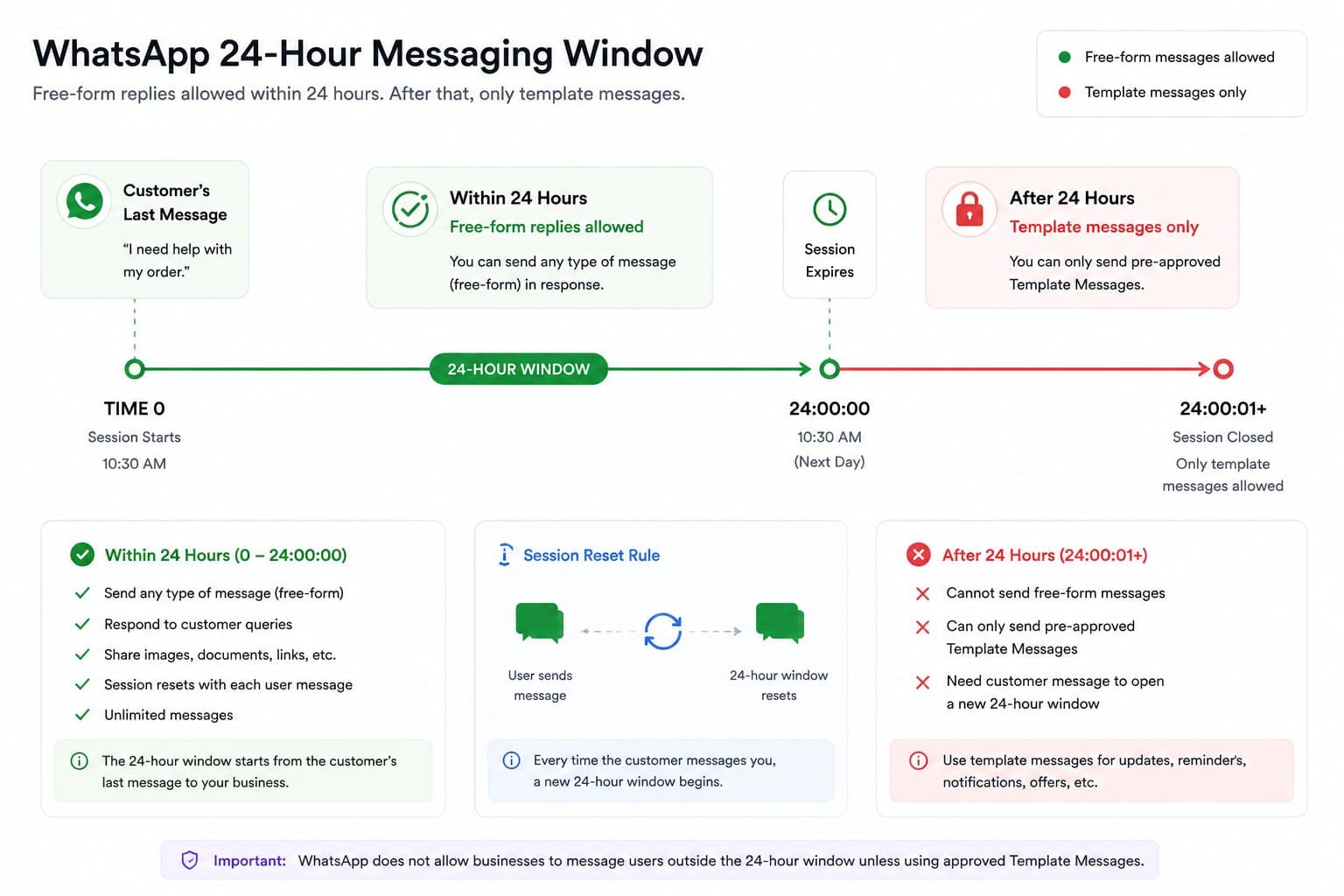
This is the single most important thing to understand before shipping any WhatsApp automation. Meta only allows free-form text messages within 24 hours of the customer's last message to you. Outside that window, the only messages that can be sent are pre-approved template messages, structured messages Meta has reviewed and approved in advance.
This means a workflow that sends a follow-up message, an order update, an appointment reminder, a re-engagement nudge, more than 24 hours after the customer's last message will fail outright if it tries to send free-form text. This is not a rate limit or a soft warning, it is a hard rule enforced by the API.
The fix is designing around it from the start, not discovering it in production:
Anything sent within an active conversation (a live support back-and-forth) can be free-form text, no template needed.
Anything sent proactively or after a gap (reminders, notifications, re-engagement) needs a pre-approved template message, submitted through Meta for review before it can be used.
Templates need to be planned in advance, since approval takes time and templates can't be edited freely once approved, changing the wording means resubmitting for approval.
I design the workflow's message categories before writing a single node: which messages are reactive, inside an active conversation, and which are proactive and need a template, then build the send logic to branch accordingly. Retrofitting this distinction after a workflow is already built means rebuilding the send logic, not just adding a template.
A realistic architecture for production WhatsApp workflows
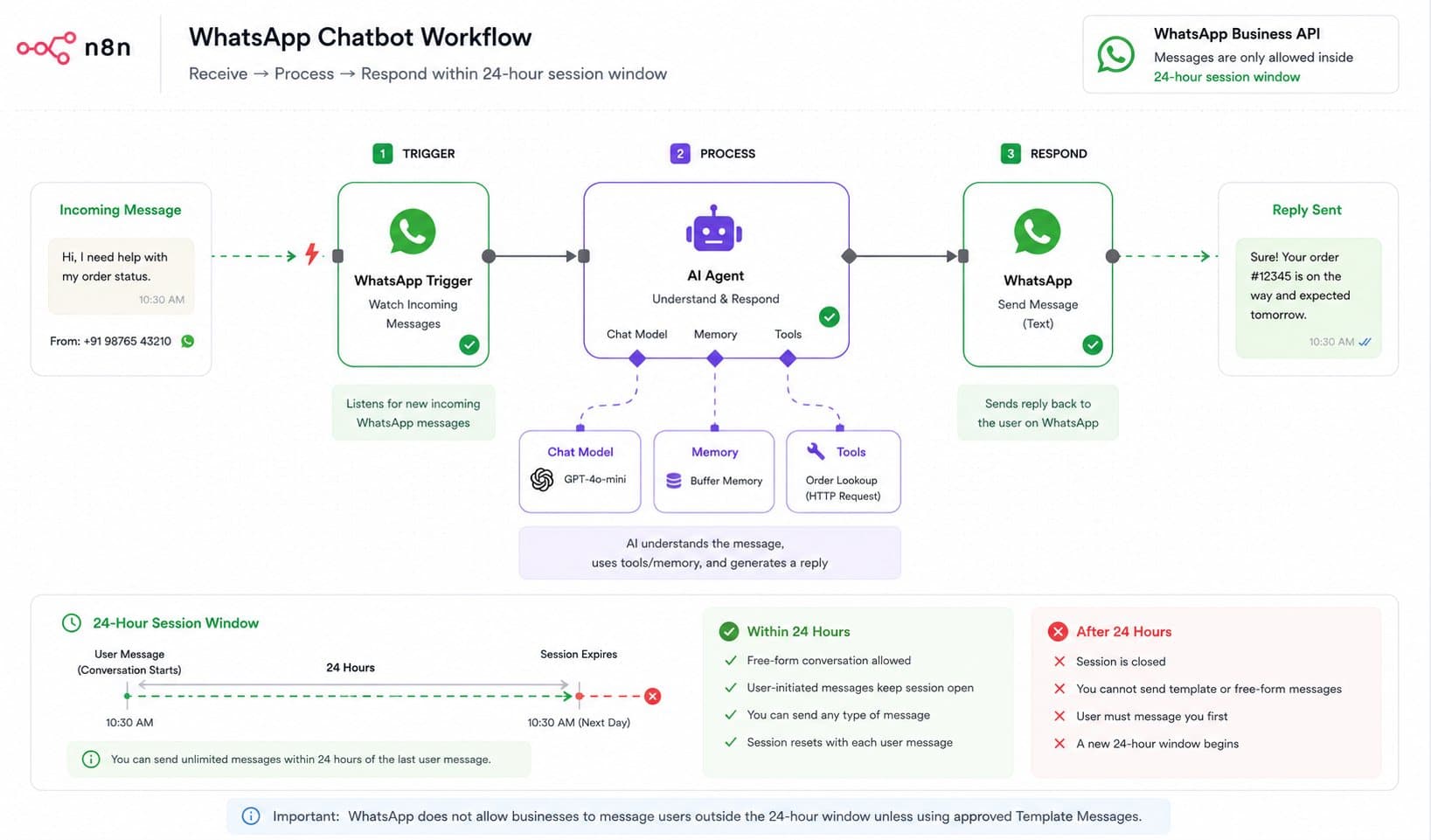
WhatsApp Trigger node catches incoming messages and starts the workflow.
A lookup or memory step identifies the customer and any relevant context, order history, open ticket, conversation state.
The response logic, an AI Agent for open-ended conversation, or fixed branching for a narrower use case, decides what to send.
A branch check on the 24-hour window before any proactive send: if the last inbound message was recent, send free-form; if not, route to a template message send instead of attempting free-form text.
Error handling on the send node, with retry and a fallback path, since template sends can fail if the template was edited, deprecated, or the customer has opted out.
For Indian SMB clients: consider an aggregator
Meta's direct WhatsApp Business Cloud API setup is the most control-heavy but also the most involved path. For many Indian SMB clients, an aggregator, Twilio, 360dialog, or AiSensy are common choices, simplifies onboarding, business verification, and template management considerably, often at a lower setup cost in time than going direct with Meta. These connect into n8n through the HTTP Request node rather than n8n's native WhatsApp node, since the native node is built specifically around Meta's direct Cloud API. The trade-off is an added layer and its own pricing, but for a client who wants WhatsApp automation running quickly without owning Meta's verification process directly, it is often the pragmatic choice.
Common errors and what actually causes them
"Re-engagement message failed to send" with no clear reason. Almost always the 24-hour window. Check the timestamp of the customer's last inbound message before assuming it's a credential or node issue.
Webhook verification fails in the Meta app. The callback URL must be publicly reachable over HTTPS and respond to Meta's verification challenge correctly. A self-hosted n8n instance behind a firewall, or one without a valid SSL certificate, fails this step every time, and the error Meta shows gives little indication that HTTPS or reachability is the actual cause.
Messages send fine in testing, then stop after 24 hours pass. This is the same 24-hour rule showing up differently, the temporary access token from Meta's quick-start UI expires after 24 hours. If sends stop working exactly one day after setup, check whether the credential is still using the temporary token instead of a permanent System User token.
Template message gets rejected mid-review. Meta rejects templates for vague or promotional-sounding language, missing required variable placeholders, or category mismatches (marketing templates submitted as utility, for example). Reviewing Meta's template guidelines before submission saves a resubmission cycle that can cost several more days.
Customer stops receiving messages with no error in n8n at all. Check whether the customer has opted out or blocked the business number. This fails silently on n8n's side since the message technically sent from n8n's perspective, WhatsApp just never delivered it.
Frequently asked questions
Almost always the 24-hour rule. A workflow tested with fresh conversations works fine, then fails once it tries to send a free-form message to a customer whose last message was over 24 hours ago. Check whether the failing send is proactive and needs a template instead.
The bottom line
The n8n side of connecting WhatsApp is genuinely simple, credentials, a trigger, a send node. The part that actually determines whether the automation survives real usage is designing around the 24-hour rule and Meta's template approval process from the start, not discovering it after a client's re-engagement campaign silently fails to send. Plan the message categories before building the workflow, budget real calendar time for Meta's verification and approval steps, and treat template rejection as a normal part of the process rather than a sign something went wrong.
If you're setting up WhatsApp automation for your own business or a client, Flowagenz builds these end to end, Meta setup, n8n workflow, and the template strategy that keeps proactive messages actually delivering. Happy to walk through your specific use case on a short call.